WOOFTECHFirewoof · AI guard

REUSE YOUR EQUIPMENT · 3-STEP SETUP

Old devices.
New purpose.

Keep the cameras you already own. Install Firewoof HOST on a Windows PC, then let the owner take over on mobile. No full replacement and no technical knowledge required.

  • No installer login
  • Pair with a QR Code or 6-character activation code
  • The owner manages phone notifications
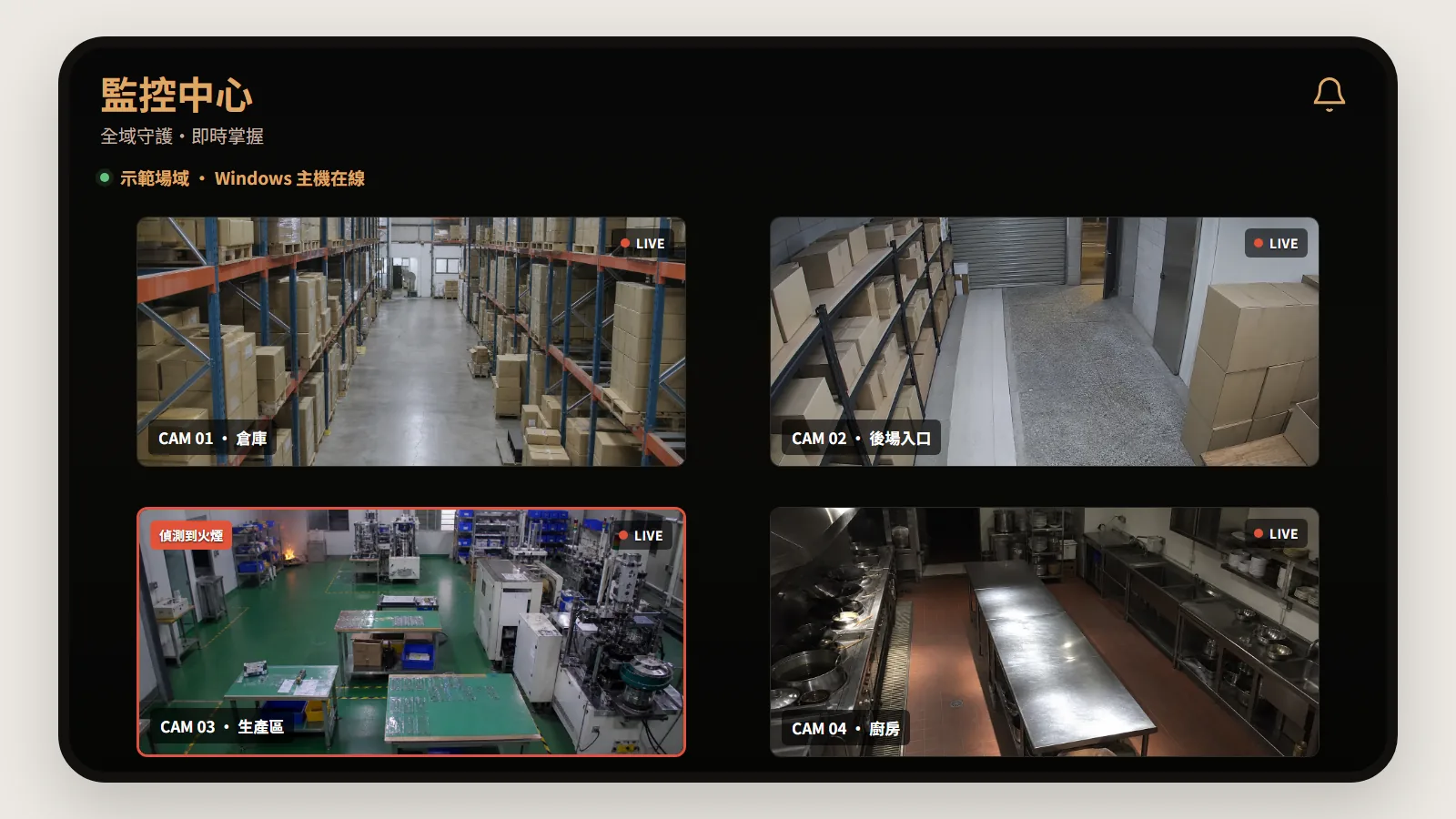
Firewoof HOST monitoring center showing multiple site cameras
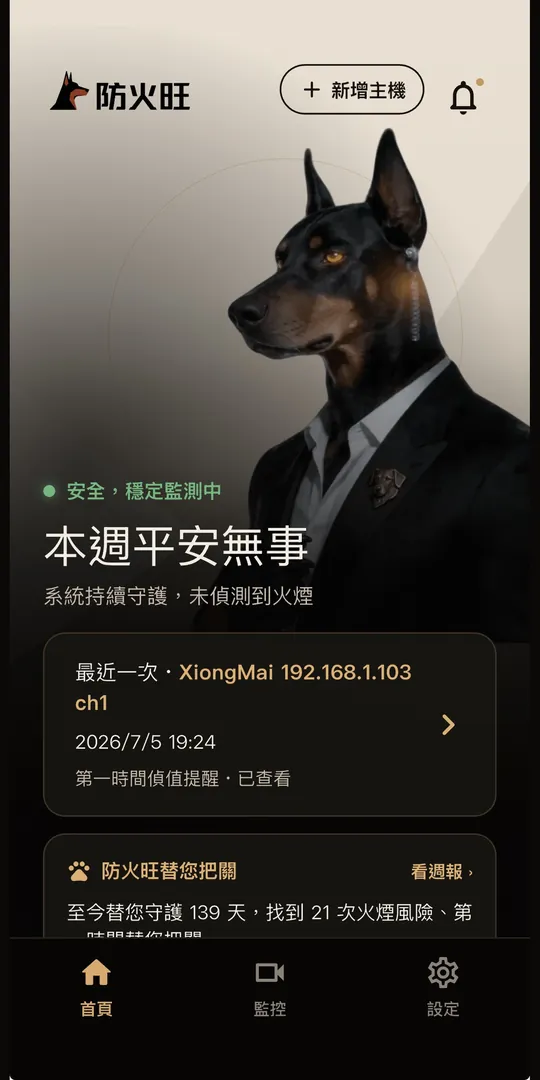
Firewoof mobile app home and protection status

HOST and phone connected

HOW IT WORKS

Three steps.
Installation and owner identity stay separate.

The person on site installs the HOST. The owner signs in, pairs the site, and receives alerts on their own phone.

An existing camera that can stay in service
01

Keep the cameras you own

Do not replace working equipment. Power the cameras and connect them to the same router as the Windows PC.

An old Windows PC ready for Firewoof HOST Real Firewoof HOST monitoring interface
02

Run HOST on a Windows PC

Open the installer and wait about 60 seconds. HOST prepares the pairing screen and starts camera discovery.

Firewoof app showing the protected site status
03

Pair on the owner's phone

Scan the QR Code or enter the 6-character activation code. Finish after HOST, cameras, and phone notifications are ready.

The installer is finished here: once a valid QR Code and activation code appear, hand them to the owner. No login, owner account setup, or payment is required on the HOST.

BEFORE INSTALLING

Prepare five things

  • 1A Windows PC that can stay powered on
  • 2Powered and connected cameras
  • 3The same router or site network
  • 4The owner's phone and Firewoof app
  • 5Camera credentials, only when requested

CAMERA NOT FOUND?

Check these four things

  1. Check powerConfirm the camera is powered and its cable or Wi-Fi is working.
  2. Confirm the same networkThe camera and HOST PC must use the same router.
  3. Scan againRetry discovery without restarting the full setup.
  4. Add credentials if askedEnter the camera username and password only when prompted.

START TODAY

Check whether your current equipment can upgrade directly.

Download it yourself, follow the AI installation guide, or send us your camera count and Windows PC details for a quick assessment.